
Chapter 12 · 12.5
Importing a database, including large files
With an import, you put an export (a .sql or .sql.gz file) into a database. You would do this, for example, if you're moving a website from another provider to WebOké, or if you're restoring an export you made earlier.
Before you start
- Create the database first (see Creating a database). The import usually only contains the content, not the database itself.
- Are you importing over an existing database? Then first make an export of what's currently in it (see Exporting a database). Tables with the same name will be replaced.
- Does the file contain a CREATE DATABASE or USE line with a different database name? Then the import will give a permissions error. Remove those lines, or export again at the old provider without those commands.
Importing in DirectAdmin
- Go to Databases and click Manage next to the database.
- Under Database Operations, click Import and choose the .sql or .gz file on your computer.
- DirectAdmin will ask: "Continue with importing file into database?". If you want to empty the database completely first, enable Clean database (1): all current content will then be deleted before importing. This is useful if you want to completely replace an old version.
- Click YES (2). After importing, you'll see the number of tables under Overview.

Importing in phpMyAdmin
- Open phpMyAdmin (see Opening and using phpMyAdmin) and click the database you want to import into on the left.
- Click the Import tab at the top.
- Next to File to import, click Browse and choose your file. Next to the button, you'll see the maximum allowed file size (1). For us, that's 1024 MiB (1 GB).
- Leave everything else as it is and click Import at the bottom.
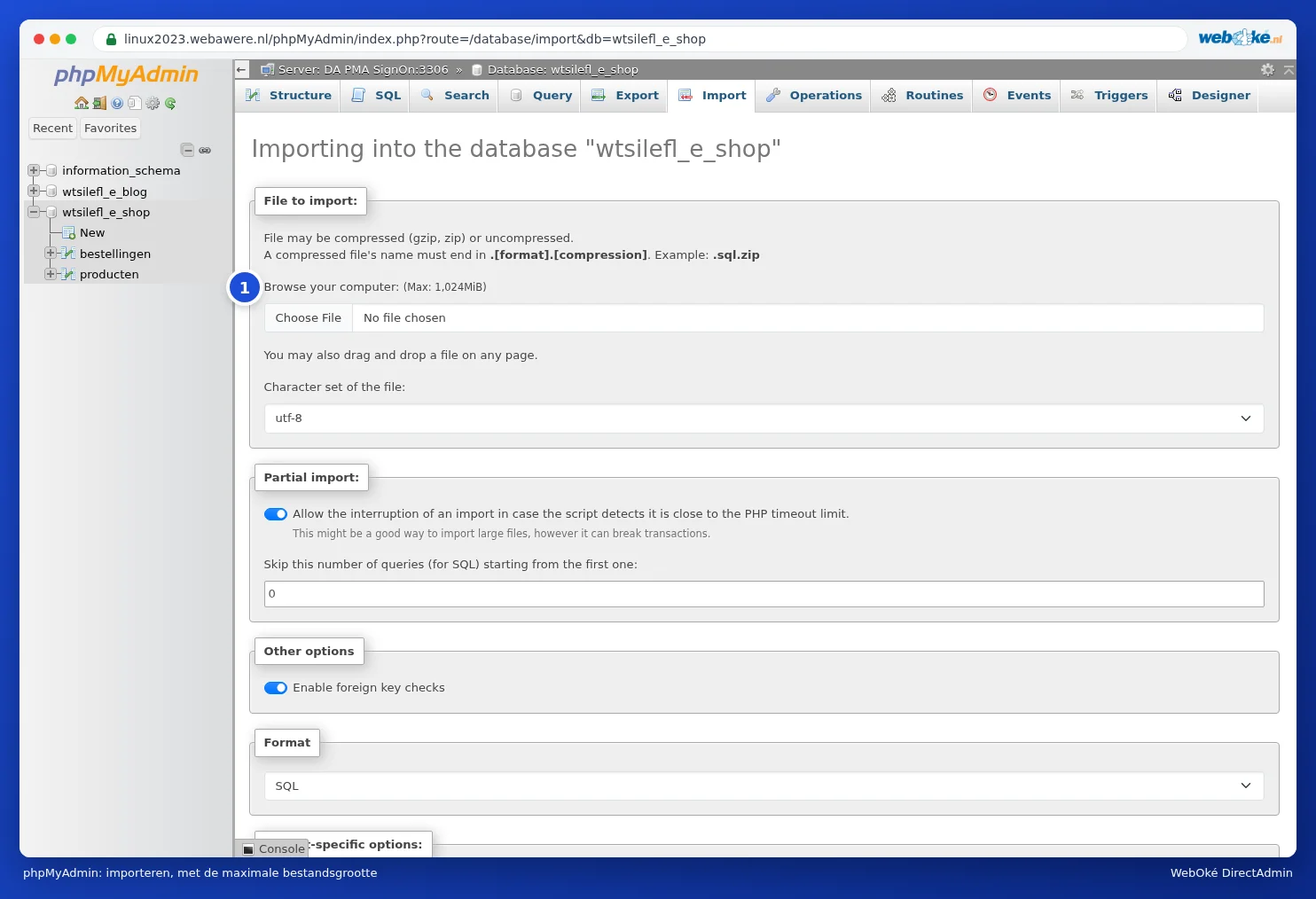
Importing a large database file
Is your file bigger than the import allows, or does the import stop halfway through with a time-out (this can also happen with large files under 1 GB)? Then try the following, from easy to more difficult:
- Compress the file. A .sql file compressed as .sql.gz is often five to ten times smaller, and both DirectAdmin and phpMyAdmin can read .gz files directly. On your computer, you can create a .gz file with, for example, 7-Zip (Windows) or with gzip file.sql (Mac and Linux).
- Import it in parts. Export the large tables separately at your old provider, or split the file with a program that splits SQL files. Then import the parts one by one, in the correct order.
- Use SSH. If you have a package with SSH (Power Webhost Three and Four, AI Wordpress Three and Power Reseller), upload the file with FTP to the root folder of your package (not in public_html) and import it in the Terminal with mysql -u user -p databasename < file.sql (see Terminal in your browser). There's no maximum size there.
- Ask us. If it doesn't work, create a ticket. Place the file in the root folder of your package and mention the file name and the database. We'll import it for you.
Please note: Never place a database file in public_html. Anyone who guesses the name can then download it, with all the data from your website and your customers. Also remove the file from the root folder once the import is complete.
After importing
- Does the database name, user and password in your website's configuration file match (see Database users, privileges and passwords)?
- Has your website's address changed, for example from a temporary address to your own domain? Then update it in the database (see Opening and using phpMyAdmin) or with a search and replace plugin.