
Chapter 7 · 7.10
Mailing Lists
With Mailing Lists you create an address, for example members@yourdomain.nl, that sends one email to all subscribers of the list at once. This is handy for a small association, a team or a group of volunteers. DirectAdmin uses the Majordomo program for this.
Please note: A mailing list isn't meant for newsletters or advertising to large numbers of people. All mail sent through the list counts towards your package's sending limit (see Send limits and the 'message limit reached' message), and without an unsubscribe link and proper formatting, such mail quickly ends up in spam. For newsletters, we recommend a specialised service, such as Laposta, Brevo or Mailchimp.
Creating a mailing list
- In DirectAdmin, go to E-mail Manager and then Mailing Lists. If necessary, select the domain in the top right.
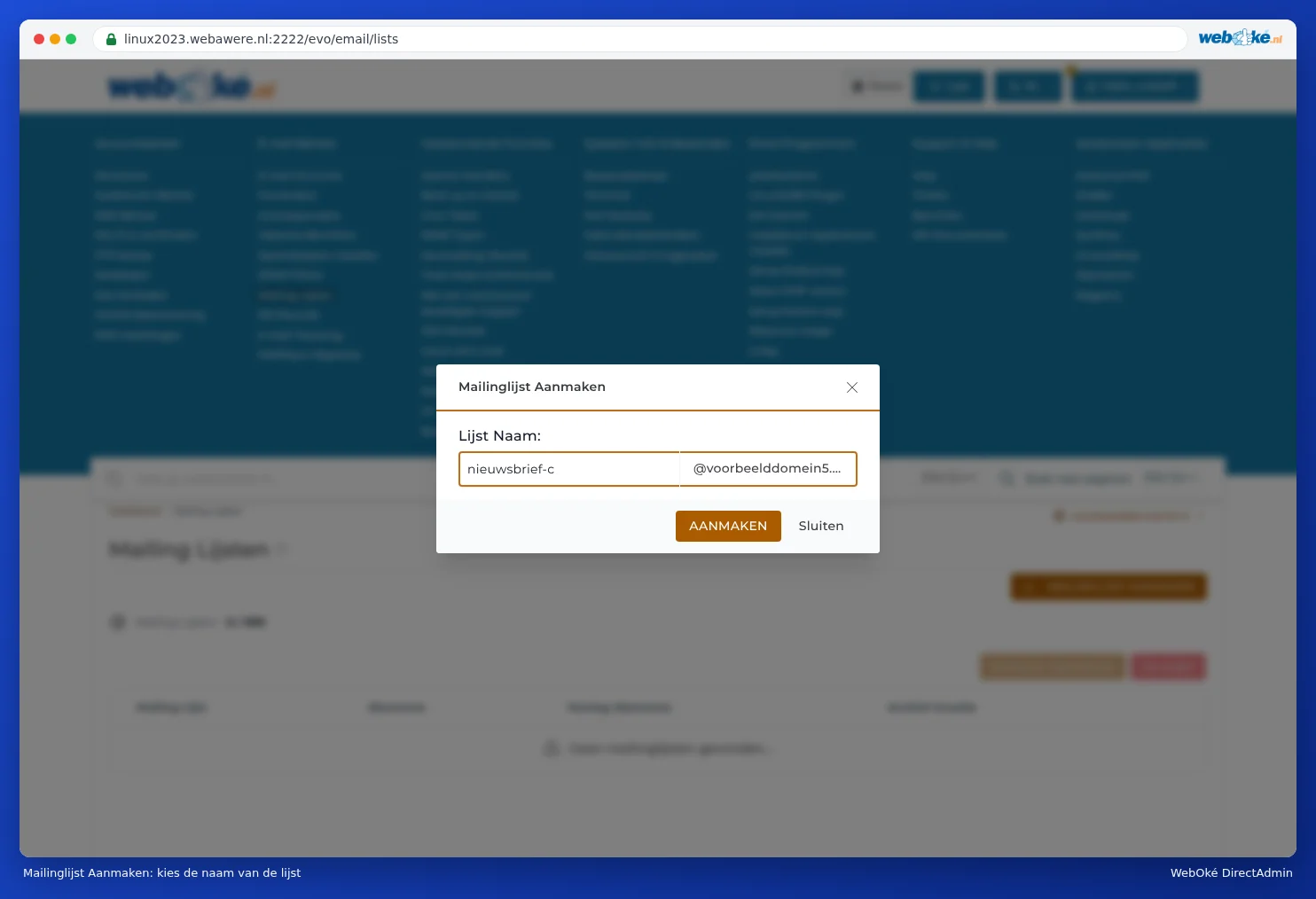
- Click CREATE MAILING LIST.
- Under List Name:, type the part before the @, for example members.
- Click CREATE.
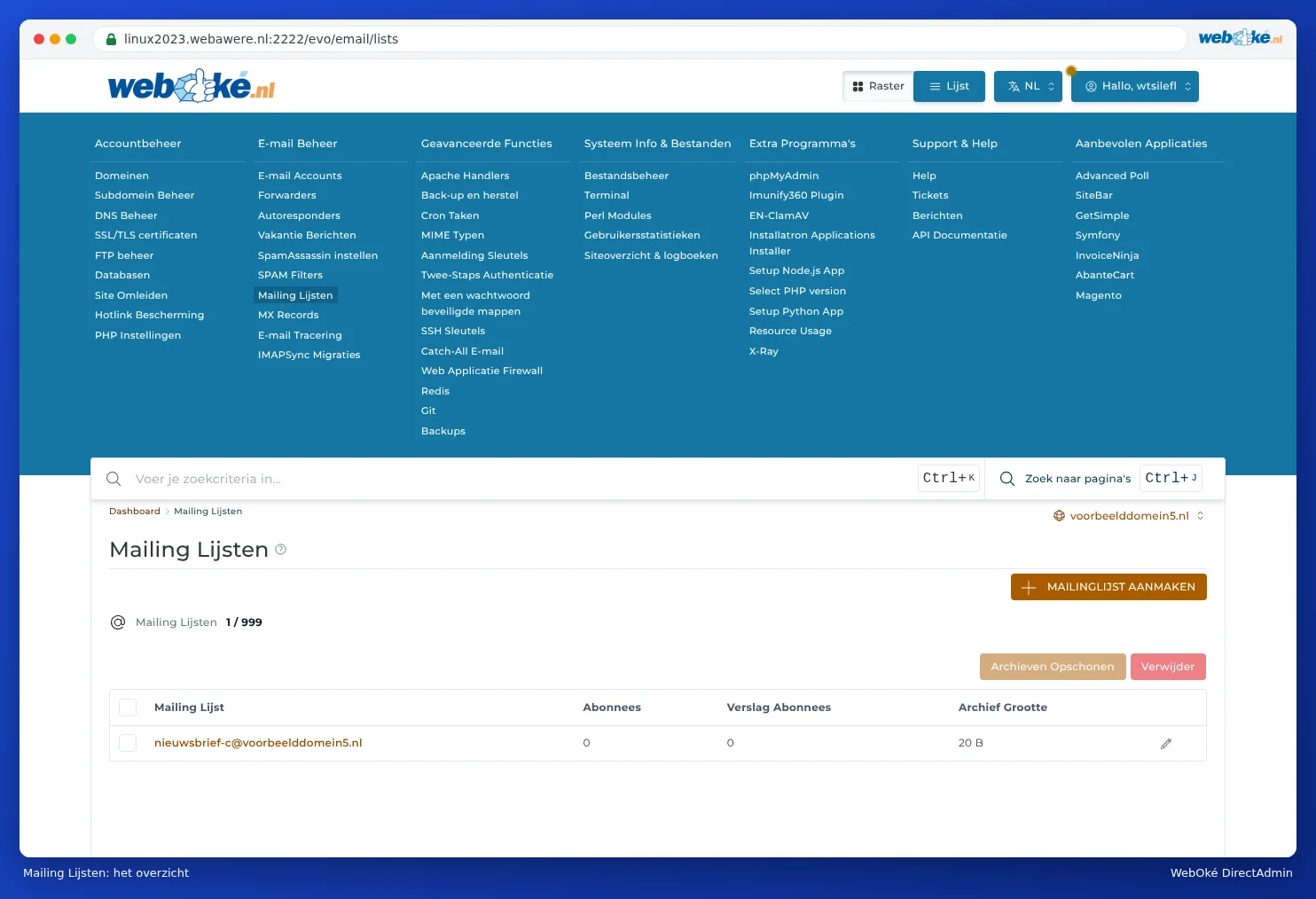
The list then appears in the overview, along with the number of subscribers.
Adding and removing subscribers
Click the name of the list. You'll arrive at View Mailing List. Click ADD SUBSCRIBER to add addresses. To remove someone from the list, tick the address and click Delete.

There are two types of subscribers:
- Subscribers: receive each email separately, as soon as it's sent.
- Digest Subscribers: receive the mail bundled into one combined message.
Sending an email to the list
Simply send your email to the list's address, for example members@yourdomain.nl. Majordomo forwards it to all subscribers.
List settings
In the Mailing Lists overview, click the pencil icon next to the list. This takes you to Modify Mailing List. The setting names are translated literally from Majordomo and can therefore seem a bit odd. The most important ones:

- Moderate (1): this controls moderation. If you set it to Yes, the list administrator has to approve every message before it's sent to subscribers.
- Restrict Post (2): determines who can email the list. If you leave it empty, anyone, including a spammer, can email all subscribers through your list. Enter the name of the list itself here (for example members), so only subscribers of the list can post. Mail from others then goes to the administrator for approval.
- MaxLength (3): the maximum size of a message, in bytes. The default is 100000, roughly 100 kB. An email with a photo or PDF quickly exceeds that and won't get through. Increase the value if you want to allow attachments, but keep it modest.
- Subscribe Policy (4) and Unsubscribe Policy: set to Outstanding by default. This lets anyone subscribe and unsubscribe by email. If you want to decide yourself who's on the list, choose a different option.
- Admin Password: the password of the list administrator, for anyone managing the list by email. Don't share it.
- Message Footer: a text added to the bottom of every message, for example explaining how to unsubscribe.
After making changes, click SAVE.
Purge Archives
Majordomo keeps an archive of the mail sent through the list. The Archive Size column shows how much space it's taking up. Use Purge Archives to free up that space again.
Frequently asked questions
Some mail to the list doesn't get through.
Usually the message is larger than the MaxLength, or the sender isn't allowed to email the list (Restrict Post). Such mail then goes to the list administrator for approval.
Can I also use a list as a shared address for a few colleagues?
You can, but a forwarder with multiple destinations is simpler for that purpose (see Forwarders: forwarding mail to another address).