
Chapter 4 · 4.1
The dashboard
Watch it in a short video
After logging in, you'll land on the Dashboard. Here you can see the state of your account at a glance and jump straight to what you need with one click. You can always get back here via Dashboard at the top of the menu on the left.
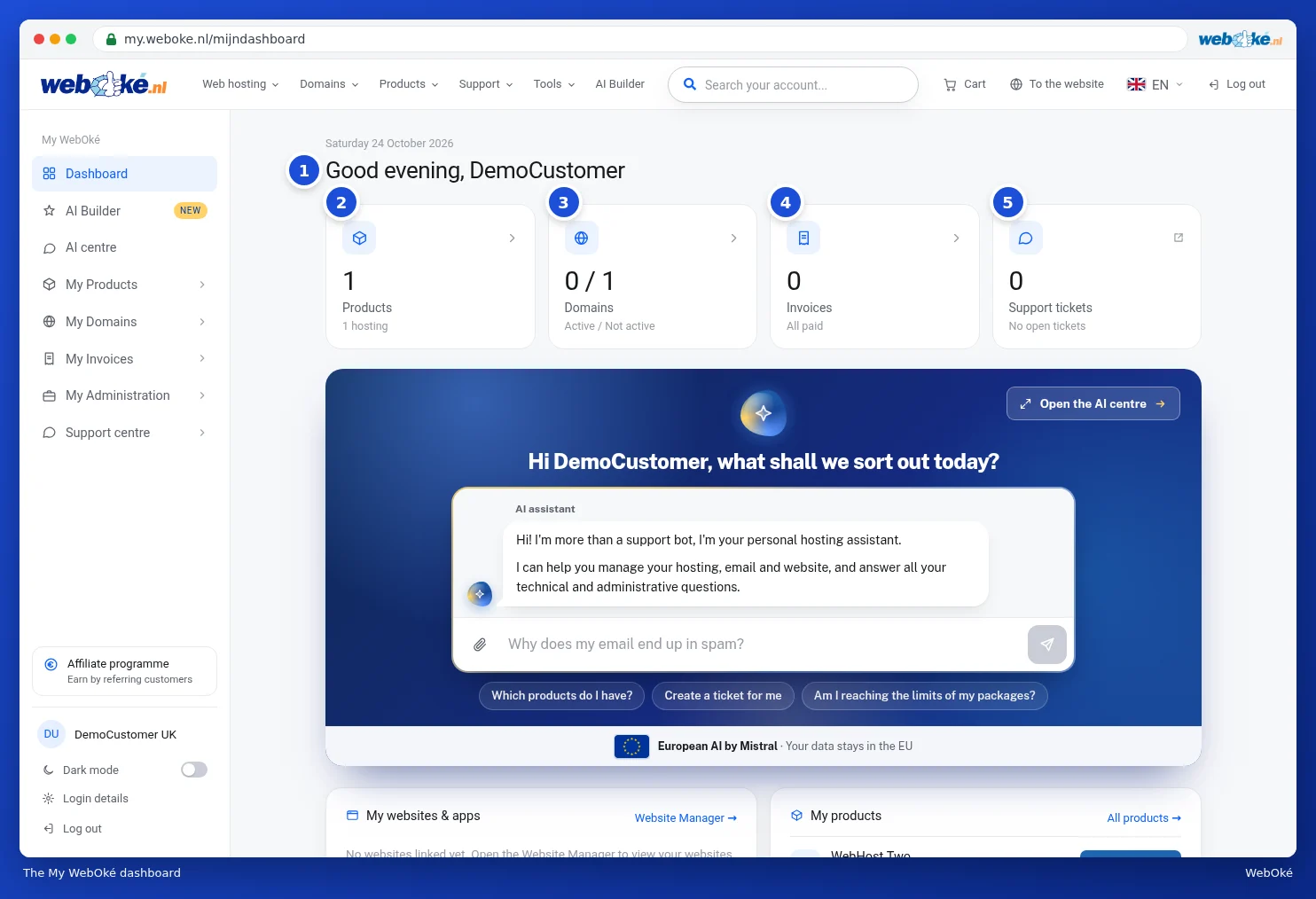
At the top: the counters
At the top, you'll see the date and a greeting with your name (1). Below that are four tiles. Click a tile to go to that section.
- Products (2): how many products you have, with, for example, the number of hosting packages underneath. See Your product overview.
- Domains (3): your active domains, including how many renew automatically. If a domain is about to expire, you'll see a label on the tile. See Your domain summary.
- Invoices (4): the number of outstanding invoices and the amount. If everything is paid, you'll see All paid. See Viewing and downloading your invoices.
- Support tickets (5): your open tickets and whether a ticket is waiting for your reply. This tile opens the support centre. See The support centre.
Notifications above the counters
Sometimes there's a bar above the tiles. You'll only see it when it's relevant:
- An outstanding invoice, with the View invoice and Pay now buttons. See Paying an invoice (including several at once).
- Secure your account: set your password, if you haven't chosen your own password yet. See Setting, changing or forgetting your password.
- A current outage or scheduled maintenance, with the View status button. See Incidents and maintenance.
- News about something new at WebOké, with the New label. Use the cross on the right to close such a message.
If you have an outstanding invoice, the bar shows the number of invoices, the amount, the invoice number and the due date (1). View invoice (2) opens the invoice, and Pay now (3) takes you straight to the payment screen. The Invoices tile then shows the 1 open label with the outstanding amount.

Further down the dashboard
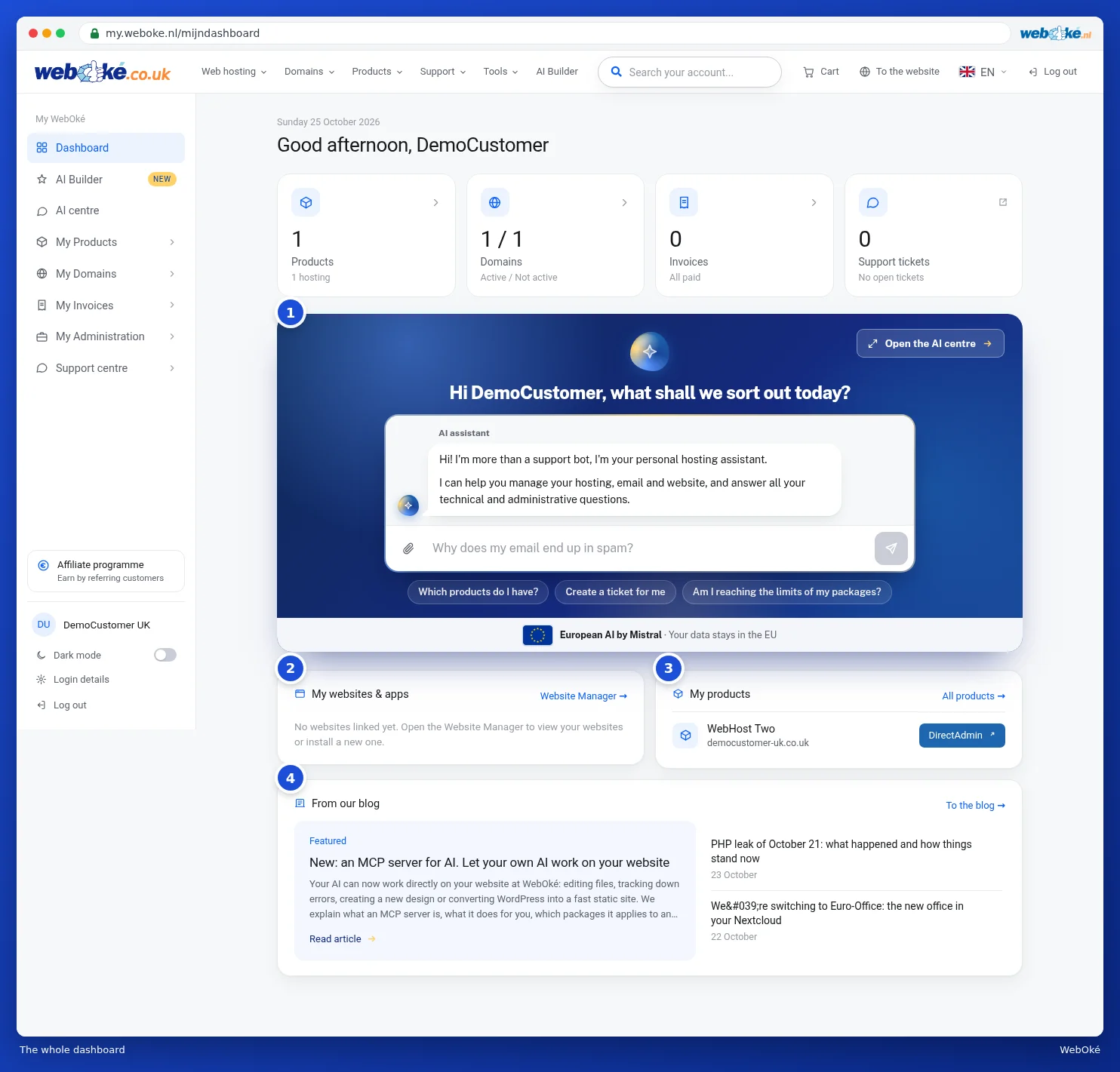
- The AI assistant (1): ask a question directly here, or click one of the example questions below it. Open the AI centre takes you to all your conversations. See The AI assistant: what can it do for you? and The AI centre and your conversations.
- My websites & apps (2): the websites installed in your package, with a Log in button to go straight to your website's management environment. If you haven't installed anything yet, we'll point you to the Website manager. See Website Manager: installing WordPress and other software.
- My products (3): your packages with the domain underneath and a button to log in directly, for example DirectAdmin. All products shows you the full overview. See Go to DirectAdmin.
- From our blog (4): the latest news and explanations from WebOké.
Tip: the first time you log in, a short tour of the main sections starts. You can view it again later, see Language, dark mode and the tour.