
Chapter 15 · 15.22
Creating letters from a recipient list
An invitation, reminder or newsletter to all your customers, each with the right name and address on it. Typing them out one by one is a lot of work. With Mail merge, Euro-Office creates all the letters at once from a spreadsheet of addresses.
What do you need?
- A spreadsheet (xlsx) in your WebOké Nextcloud with the column names in the first row, for example Salutation, Name, Company, Address, ZIP Code, City. Each following row is one recipient.
- A letter (docx) with the fixed text.
Step 1: linking the recipient list
- Open the letter.
- Go to the Collaboration tab and click Mail merge (1).
- Choose From Storage to pick the recipient list from your Nextcloud, From file for a file on your computer, or From URL for a file on the internet.
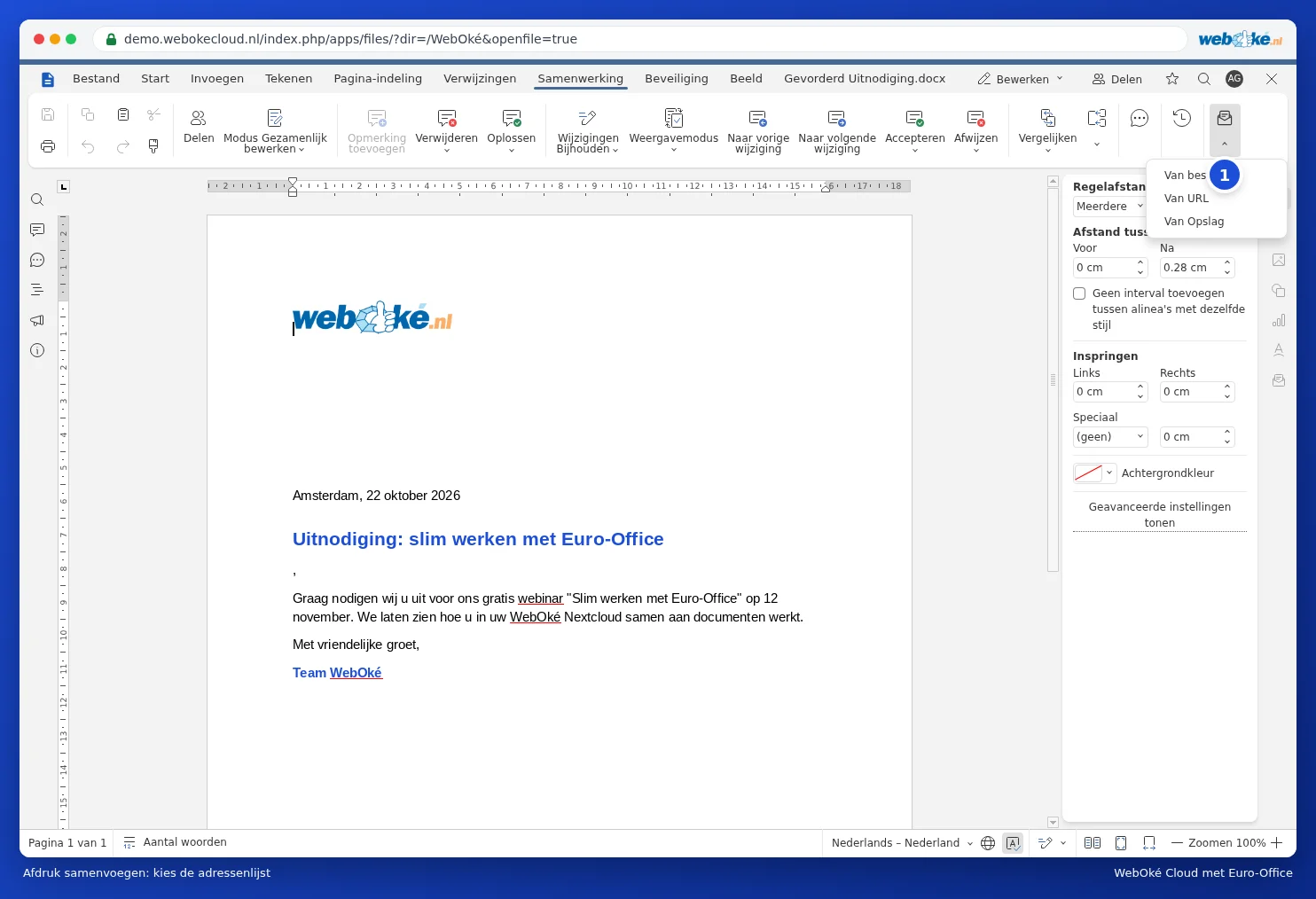
The Mail merge settings appear on the right. Use Edit recipient list to tick or untick recipients.
Step 2: adding fields to the letter
- Place the cursor where the name should go.
- Click Insert merge field on the right and choose Name.
- Do the same for Company, Address, ZIP Code and City. Add spaces and line breaks between the fields yourself, and for example type a comma after the salutation.

Step 3: checking and merging
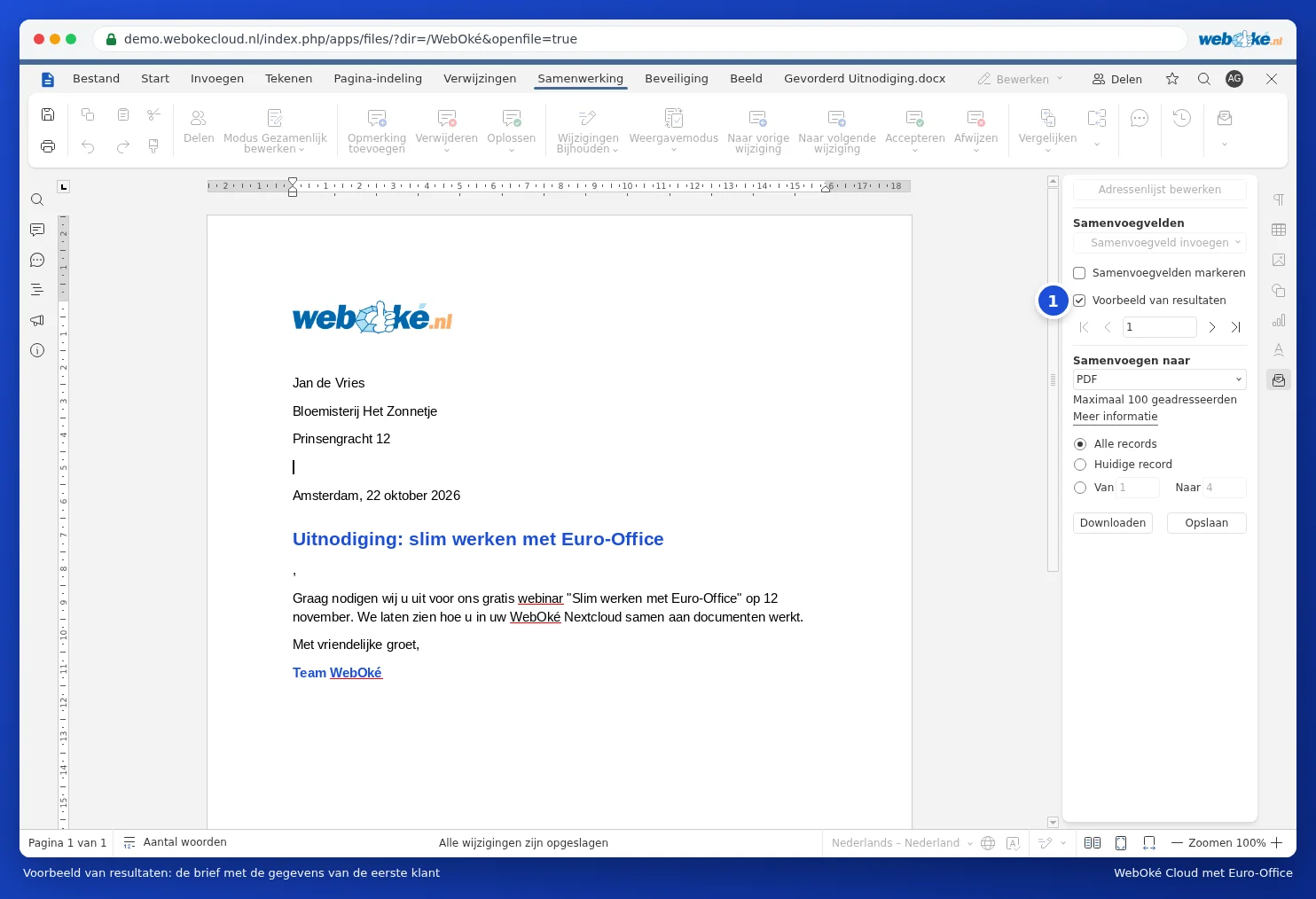
- Click Preview results. Use the arrows to browse through the letters per recipient.
- Under Merge to, choose what you want: a single PDF with all the letters for printing, a Docx to check further, or Email.
- Choose whether you want all records or just some, then click Download or Save.
Pitfalls and limitations
- Euro-Office merges a maximum of 100 recipients at a time. If you have more, do it in batches (records 1 to 100, 101 to 200) using From and To.
- Mail merge works in the browser, in your WebOké Nextcloud.
- Euro-Office can't create address labels (several addresses on one sheet): each letter gets one recipient. A fair alternative: create the labels in a spreadsheet with the addresses in a grid that fits your label sheet, or use a label program from your label manufacturer.
- Does a ZIP Code appear without a leading zero, or does an amount look odd in the letter? Check the number format in the spreadsheet (see Keeping the leading zero in a phone number or postcode).