
Chapter 15 · 15.5
Dates that come in as text or have day and month swapped
You pull an export from your bank, webshop or accounting software and the dates look wrong: 03/04/2027 turns into 4 March instead of 3 April, or you can't calculate or sort with them. In that case, the dates are stored as text.
Recognising it
- Text dates sit on the left of the cell, real dates on the right.
- If you choose Long Date as the number format and nothing changes, it's text.
- A formula like =C3+30 gives #VALUE! or something odd.
First: set the region correctly
Go to File, Advanced settings and set Region to your own language and country, for example English (United Kingdom) (see Copying formulas from Excel: English function names and the comma). Then Euro-Office reads everything you type yourself as day-month-year.
Converting text into a real date
If A3 contains the text 03/04/2027 (day/month/year), enter this in C3:
=DATE(RIGHT(A3,4),MID(A3,4,2),LEFT(A3,2))
RIGHT takes the last four characters (the year), MID takes the two characters starting at position 4 (the month), and LEFT takes the first two (the day). DATE turns this into a real date.
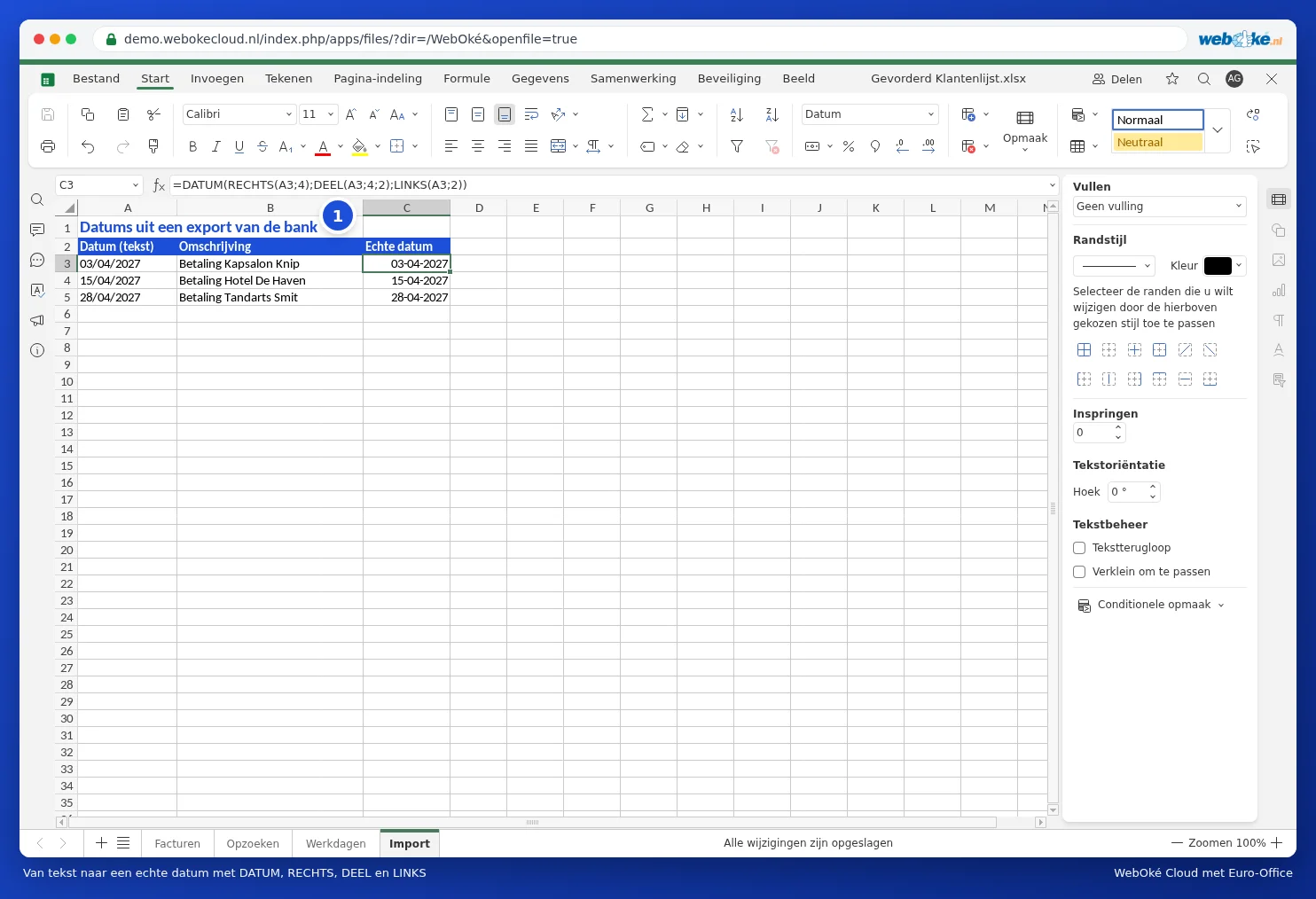
- Drag the formula down.
- Give column C the Short Date format.
- Want to get rid of the old column? Copy column C, right-click and choose Paste special with values only. Then you can delete column A.
American dates (month/day/year)
If the export comes from an American system (04/03/2027 for 3 April), swap MID and LEFT: =DATE(RIGHT(A3,4),LEFT(A3,2),MID(A3,4,2)).
Pitfalls
- Is the day or month sometimes a single digit (3/4/2027)? Then the fixed position won't work. First use Text to Columns on the Data tab with the forward slash as the separator (under Other), then apply =DATE(year,month,day) to the three columns.
- Don't use =TEXT() to "fix" it: that just gives you text again.
- If it comes from a CSV file, also take a look at Opening a CSV file with semicolons and strange characters correctly.